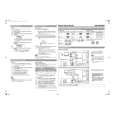
HOW TO USE THE PIP (PICTURE IN PICTURE) CONTROL
hile you are in TV mode, you can call up
Wa PIP window for the PC and HD. To
enable the PIP function, a HDMI Input sourTVMenuce
must be selected. (Refer to the QUG for details on Features
PictureTimer
connections.)TimerPIPSize
SoundAutoLock
AutoLockHorizontal
FeaturesContrast+
Press the MENU button on the remote Contrast+Vertical
1 control to show the onscreen menu.InstallDNRDNR
PIPPIP
Press the CURSOR DOWN button to
2 highlight Featur.es
Press the CURSOR RIGHT button access
PIP
3 the Features menu.
1PIPSizeOff
Press the CURSOR DOWN button until Horizontal
4 PIP is highlighted.Vertical
English
Press the CURSOR RIGHT button 11
5 to enter the PIP menu. PIP Size will be
highlighted.
6
3
Press the CURSOR LEFT or CURSOR
PIP
6 RIGHT button to select the available P8IP 5
PIPSize
Size options including O ), On, Small,
Medium, Large, or Side-by-Side.610Horizontal1
Vertical
Press the CURSOR DOWN button to
8
7 highlight Horiz. ontal2
Press the CURSOR LEFT or CURSOR 10
4
8 RIGHT button to move the PIP screen
horizontally to the desired position.7PIP
If you want to move the PIP screen 9PIPSize
Horizontal
9 vertically, press the CURSOR DOWN
Vertical1
button to highlight .Vertical
Press the CURSOR LEFT or CURSOR
10RIGHT button to move the PIP screen
up or down.
Press the STATUS/EXIT button to exit
11the menu from the screen.
HELPFUL HINT
To turn o ) the PIP window, select PIP Size
and select the O ) option.
NOTE: You can also access the PIP window
by pressing the button on the remote
control. P ress once to display the PIP
screen.
Press repeatedly to toggle through the
various PIP screen sizes.
21 |

 ACEC
ACEC PHILIPS