Setting up
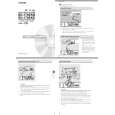
Completion Notice Function
     Setting up the Completion Notice
Ex: Copy JobThe Job Status Utility software will display the pop-up Completion Notice
on your PC screen when finishing the Print, PC Fax, Copy, and Fax jobs.
The information displayed in the Completion Notice vary according to the
type of job being performed.
Basic Procedures:Setting up for PC Fax, and PC Print:
Install the Job Status Utility located
Right-click the Panasonic Job
1on the Panasonic Document1
Status Utility icon on the task
Management System CD-ROM.
(See pages 8-12)bar, and select "Setup" from the
menu.
Confirm that the Panasonic Job
2
Status Utility icon is shown on
the task bar.
Panasonic Job Status Utility Icon
Choose the display condition for
Panasonic Job Status Utility Icon
the Setup window, and then click2
I If the Job Status Utility icon is not
shown on the task bar, select "All"OK".
Programs" ????? "Panasonic" ????? "Job
Status Utility" ????? "Job Status Utility" ?????
to activate the Job Status Utility icon.
For PC Fax, and PC Print only
3
Setup the Completion Notice as
described in the column on the right.
For Copy, Fax, and Internet Fax only
Refer to "Setting up the Scanner
Configuration using the Communications
All: Always displays after each
Utility". (See page 33)
transmission, or print job.
Select your PC on the Touch Panel DisplayError only : Displays only when an error
of the machine, refer to the Completionoccurs.
Notice of each relevant OperationNone: Does not display.
Instructions on the provided CD-ROM.
32
25_32.pmd3211/16/2006, 3:46 PM |

 ACEC
ACEC PANASONIC