FO-1660MTH
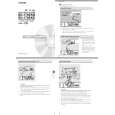
4Replace the paper cover on the paper tray and then push the paper5. Clearing paper jams
release plate back down.If a document doesnOt feed properly during transmission or copying, or
YImportant: Be sure to replace the paper cover before you pushDOCUMENT JAMMED appears in the display, first try pressing the
the paper release plate down.START key. If the document doesnOt feed out, open the operation panel
(grasp the front edge at the "PANEL RELEASE " mark and pull up) and
pull it out gently.
1Press the release marked OPEN and open the print compartment
cover.
YCaution! The printing head (the strip of metal on the underside of
the frame) applies heat to the imaging film. It may be hot
if a document has just been printed.
5 Your fax has been set at the factory to print on regular paper. If you
have loaded Sharp FO-16NC paper, you must change this setting to
"HIGH QUALITY". Press the "FUNCTION " key, the "6" key, the " "
key two times, and then press "1" to select regular2" to select, or "
Sharp high quality paper. When finished, press the STOP key. Be
sure to change this setting again if you change back to regular pa-
per.
FUNCTION
6
2 Remove the imaging film from the printing compartment and set it on
a sheet of paper.RegularHigh quality
1or2
STOP
3Gently pull the jammed paper out of the printing compartment.
1 � 7 |

 ACEC
ACEC SHARP
SHARP