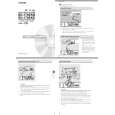
The Advanced Set-up Menus
ADV 1 ? Speaker Eq.
This allows ż ne adjustment of bass and treble in 1dB steps (up to ?6dB) for each of the
speakers in the system. Use these adjustments sparingly to compensate for speaker
response problems caused by positioning, adjacent surface textures, or mixed brands
of loudspeakers.
Work with one speaker on at a time and, as an example, use the bass control to reduce
boom problems for speakers placed in corners, and the treble control for speakers
placed near reA ective surfaces. We recommend trying to obtain a good speaker
Englishresponse by speaker placement ż rst, then apply speaker equalisation last.
The tone control nominal corner frequencies are at 100Hz and 8kHz, shelf type.
Auto Stereo Tone Bypass: Set this itemY EtSo if, when a stereo input signal is
detected (analogue or digital), the tone adjustments set on this page are to be by-
passed. (Note that this does not switch the AVP700 into ?Direct? mode, it simply sets
the tone controls to zero.)
ADV 2 ? Video Settings
This menu allows advanced adjustment of the video settings for your AVP700.
Zone 1 OSD : Selects whether the main zone OSD is on or off.
< When set toO NA all user adjustments that are made during the general use of
the AVP700 are displayed on the screen. This includes the adjustment of the
volume control, the inputs selected and the set-up menus.
< When set toO FFA there will be no display of the general user adjustments
? only the set-up menus and the main menus are displayed.
It is recommended you keep the OSD turnOeNdA since if you cannot see the front panel
of the AVP700 you will have no idea if any adjustments you have made to the processor
are correct or to your liking.
Video Inputs: Composite and S-video inputs for DVD, Sat, AV, VCR and AUX have
tthheeiir ra uaduidoi aon da nvdid evoi daesosi gansesdi gton etdra ctko etarchac okt heearc bhy odtehfaeurl t.b yT hdee żf vaeu l?Vti.d eToh eIn pż uvte? li?nVeis dfeoor TIanppeu, tC?D ,l ines for Tape, CD,
FM, AM and DVD-A allow assignment of a video source to these normally audio-only sources. If desired,
it is possible to allocate the same video source to more than one audio input. This facility allows you
to listen to an audio source and view a separate video source at the same time ? for example, you can
listen to radio while watching TV for a sports simulcast.
HQ Video DVD, AV and SAT : Allocate the high quality component or RGB video inputs to any source
buttons. For example, to assign the Component/RGB video from the ?HQ Video DVD? inDpVuDt to the
button, set the ?HQ Video DVD? item in this menu to ?DVD?.
IfH Q-VIDEO is set RtGoB (as described on page 13) and an HQ-video input is assigned to a button,
the AVP700 assumes that RGB signals are present for that input if a composite signal is found on the
corresponding composite inpIuft . this assignment is made but no RGB signals are supplied, the
display will be blank for the assigned source.
For HDMI video assignment, please see 3ADV 6 ? HDMI Settings´.
ADV 3 ? Digital Settings
Coaxial inputs and Optical inputs. Each of the digital inputs can be assigned to any
of the seven stereo source buttCoDn,s T A(PE , DVD , SAT , AV, VCR and AUX ), or can be
assignedN o button.
This menu page lists the physical inputs, as per the back panel, on the left hand side of
the screen, with the buttons used to select the inputs listed on the right hand side.
Each digital input can be allocated only to one source button. For example, if you
choose the ?Coaxial DVD input? to be assignedD VtDo btuhtet on, then the choices for
the other digital inputsC Da,r eTA:P E , SAT , AV , VCR , AUX and NO BUTTON . If you wish
to re-allocate the DVD input to a different button, ?Coaxial DVD input? must be assigned
to a different buttonN o( obru tton) before you can re-assign the DVD input.
AVP700AVP700
E-16E-17 |

 ACEC
ACEC