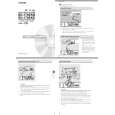
How to Use the On Screen Display (OSD)
Main Controls window
BrightnesBrightnesssContrContrastast
To adjust your screenOs brightness, follow the steps below.To adjust your screenOs contrast, follow the steps below.
Brightness is the overall intensity of the light coming from theContrast is the difference between the light and dark areas on
screen.A 50% brightness level is recommended.the screen.A 100% contrast level is recommended.
11Press the ONSCREEN1Press the ONSCREEN1
DISPLAY button toDISPLAY button.
highlight theNext, turn the
BRIGHTNESS icon.ROTARY knob until
the CONTRAST icon is
highlighted.
Press the Press the 4444
ON SCREENON SCREEN
DISPLAY button toPress the ONDISPLAY button to
222Press the ON
return to MAINSCREEN DISPLAYreturn to MAIN2
SCREEN DISPLAY
CONTROLSbutton to bringCONTROLS
button to bring
window.up BRIGHTNESSwindow.
up CONTRAST
screen.screen.
33Turn the ROTARYknob (at the33Turn the ROTARY knob to
lower right-hand corner of theadjust the contrast.
monitor) to adjust the
brightness.
Smart HelpSmart Help
After returning to MAIN CONTROLS . . .After returning to MAIN CONTROLS . . .
. . .to continue to CONTRAST,turn the ROTARYknob until the CONTRAST. . . to continue to DEGAUSS,turn the ROTARYknob until the DEGAUSSicon
icon is highlighted. Next, follow steps 3 - 5 under CONTRAST.is highlighted. Next, follow steps 3 - 4 under DEGAUSS
. . . to exit completely,press the OSD button and hold for 1.5. . . to exit completely,press the OSD button and hold for 1.5
seconds. (See page 16 for other exit options.)seconds. (See page 16 for other exit options).
4 |

 ACEC
ACEC PHILIPS