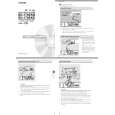
HOWTO USETHE PICTURE ADJUSTMENT CONTROLS
o adjust your TVpicture controls,
Tselect a channel and follow the
steps shown below:
Main
PictureBrightness
Press the MENU button on the
SoundColor
remote to display the on-screen menu.
FeaturesPicturePicture
InstallSharpnessBrightness50
Press the CURSOR UP 2 or
TintColor
DOWN 1 buttons until the word PIC-
More...Picture
TURE is highlighted.
Sharpness
Tint
Press the CURSOR RIGHT�
Color Temp.
button to display the PICTURE menu
features.
Press CURSOR UP 2 or DOWN
1 buttons to scroll the Picture features
6
and highlight the control you wish toPicture
4
adjust (Brightness, Color, Picture,2Brightness65
Color
Sharpness, Tint, or Color Temp.).1
7Picture
Press the CURSOR RIGHT� orSharpness
Picture
Tint
the CURSOR LEFT � buttons toBrightness
Color Temp.
adjust the selected control or to makeColor50
selections for the Color Temp. controlPicture
(Normal, Warm, or Cool).53Sharpness
5Tint
Picture
VOL
Press the CURSOR UP 2 orColor Temp.
Brightness
2
DOWN 1 buttons to select and adjust
4Color
other Picture Menu controls.6Picture50
Sharpness
When finished, press the STATUSTint
/EXIT button to remove the menuColor Temp.
Picture
from the TVOs screen.Brightness
Color
Picture
Sharpness50
Tint
Color Temp.
SMART HELP
Picture
BRIGHTNESS Press the� or
Brightness
�buttons until darkest parts of the
Color
picture are as bright as you prefer.
Picture
COLOR Press the� or buttons to addSharpness
or eliminate color.Tint0
Color Temp.
PICTURE Press the� or� buttons until
lightest parts of the picture show good
detail.Picture
Brightness
SHARPNESS Press the� or� buttons
Color
to improve detail in the picture.
Picture
TINT Press the� or� buttons to obtainSharpness
natural skin tones.
Tint
COLOR TEMP Press the� or� buttonsColor Temp.Normal
to select NORMAL, COOL, or WARM pic-
ture preferences. (NORMAL will keep the
whites, white; COOL will make the whites,
Warm
bluish; and WARM will make the whites,or
Cool
reddish.)
14 |

 ACEC
ACEC PHILIPS