FEATURE MENU CONTROLS (CONTINUED )
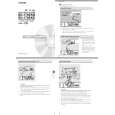
SET CLOCK
OTE: If you went through
NFirst Time Setup (in your
Quick Use Guide), this task has
already been completed for you.
Your TV comes with an on-screen
clock. During normal operation theFEATURE MENU
clock appears on the screen withMAIN MENU
PICTURECABLE
every channel change (and whenPICTURESOUNDSOURCETUNING
the STATUS button is pressed).
FEATURESHELPCLOSEDCHANNEL
CAPTIONSMEMORY
BEGINEXIT
EXITMORE...
1 OF 3
1Select SET CLOCK control.
With FEATURES MENU (2 of 3)3FEATURE MENU
on screen, move the RED highlight1SET CLOCKSLEEP
REC lPLAY?STATUS
CLEAR & ON TIMERTIMERwith the MENU buttons. Then
MENU
press the MENU (M) button.REW!M~FFHALF HOUR§§CHANNEL
??REMINDERDISPLAY
PAUSE II
2Press the remote's numberMUTESTOP nSURFEXITMORE...
buttonsto set the time clock. 2 OF 3
1VOLCH
3Press the STATUSbutton toON/OFFPOSSWAPFREEZE
set the clock in operation and clearSIZESET CLOCK & ON TIMER
the screen.
100+123SET CLOCK
STOP
TV/VCR456
ENTER2SET ON TIMER789
SLEEP
SMART0EXIT
POWERVCRCBLTV
SMART HELPMODE
Remember, be sure to
press "0" first and then the
SET CLOCK
hour number for single digit
9 : 19 AM
entries.
The remote's MENU buttons
PLEASE ENTER THE
can also be used to set the hours,
CURRENT HOUR
minutes and AM/PM portions of
the clock.
TV Clock settings may be lost
when the TV is unplugged (or AC
power to the set is interrupted.)
You can also set the TV Clock
automatically if you follow the First
Time Set-up procedure for the
Smart Clock feature.
14 |

 ACEC
ACEC PHILIPS