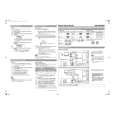
Installation
1. Specifying the configurations when 2. Specifying the configurations for TV
switching on TVPICTURE / SOUND
In the SWITCH ON / OSD menu, it
You can select and configure the settings
allows you to select and configure the
and options for Brightness, Color,
settings and options for :
Contrast, Sharpness, Tint, Active
Welcome Message
Control, Treble, Bass, Balance and
Switch on Channel
AVL
Switch on Volume
Switch on Picture Format Press the > button to enter the
Power On PICTURE / SOUND menu.
Volume Indicator
Channel Display
CHANNEL INSTALLCONFIGURATION
SWITCH ON / OSD >
PICTURE / SOUND >
CHANNEL INSTALLSWITCH ON / OSD
SECURITY >
WELCOME MESSAGE >
CONTROL >
SWITCH ON CHANNEL TV 2 VIDEO ADJUSTMENTS >
SWITCH ON VOLUME 30FEATURES >
SWITCH ON PIC FMT WIDESCREEN
CC / V-CHIP >
POWER ON LAST STATUS
VOLUME INDICATOR YES
CHANNEL DISPLAY ALL
CHANNEL INSTALLPICTURE / SOUND
You can choose to:BRIGHTNESS 45
COLOR 38
key in a welcome message.CONTRAST 70
set a channel which you desire the TV SHARPNESS 50
TINT 36
to always tune to at startup. ACTIVE CONTROL YES
specify the volume setting at startup. TREBLE 52
BASS 55
select your preferred picture format
BALANCE 0
at startup (4:3, Zoom 14:9, Stretch AVL ON
4:3, Zoom 16:9, Subtitle Zoom, Wide
screen, Super zoom or Full screen).
select the status (Last Status, On,
Press the < > buttons to select
Standby or Forced On) of the TV the item you want to configure.
when powered on. If FORCED ON
Press the < > buttons to make
option is selected, the POWER
adjustments or select option.
buttons on the Guest Remote Control
and the TV will be disabled.
display the volume indicator.
display the channel number or label
(if any) or both.
23 |

 ACEC
ACEC