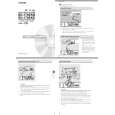
REMOTE CONTROL VCR SPECIFIC BUTTONS
hen using the TVremote control with a
WVCR, first make certain it is set to con-
trol your VCR (by the REMOTECODE or
SEARCH method).
Set the TV/VCR/ACC mode switch2
to VCRon the remote control.
1
Point the top of the rtowardemote
the front of the VCR (remote sensor1
2
window) when pressing the buttons.
VCR System SwitchPower Button
Set in the VCR position to send remote com-Press to turn the VCR ON and OFF.
mands to the VCR.
TV/VCR Button
Record ButtonPress while in the VCR mode (the VCR indi-
Hold the REC(ord)/Sap and PLA� buttonsYcator on the front of the unit will light) to view
down to begin a VCR recording.the playback of a tape. Press again to place in
the TV position (the VCR indicator light will
Play Button �
go off) to view one program while recording
Press to begin playback of a videotape.
another program.
Rewind Button ��
Number Buttons
Press to rewind tapes. For some VCROs, the
Press buttons for the direct selection of
STOP button may have to be pressed first,
VCR channels.
then REWIND. In playback mode, hold
down the button to view the picture movingChannel + and � Buttons
rapidly in reverse.
Press to scan up or down through the VCR
channel numbers.
Stop Button Â
Press to stop the motion of a tape in play-Fast Forward Button ��
back, rewind, fast forward, and so on. Press to rapidly advance the tape. For some
VCRs, you may need to press the STOP
button first, then the FAST FORWARD
button. In playback mode, hold the button
down to view the picture moving rapidly in
HELPFUL HINT
the forward direction.
Remember, the VCR buttons on the remote will
not operate your VCR if those features are notPause ButtonII
found on your VCR remote control.Press to temporarily stop the tape during a
playback or recording. Press again to
NOTE: All VCR functions (particularly
release Pause.
Search, Rewind, Fast Forward, etc.) will oper-
ate the same as with the original VCR remote
control provided with the VCR.
51 |

 ACEC
ACEC